Camangi WebStation
Internet
1. Why can't I successfully use Email, Google Mail, eBook, C Market applications?
That may be caused by failing to connect with internet.
First, please make sure you have turned on one of the wireless connecting applications.
(1 ) Tap [Settings> Wireless controls> Wi-Fi] again and make sure the Wi-Fi has been turning on. Or insert 3G dongle and touch 3G Wizard to connect to internet.
(2) Tap the [Browser] icon to enter Browser application; then link a webpage you have never linked before. If the webpage can be successfully opened, that means the internet connection of your WebStation is working now.
Second, please check the time settings of your WebStation is correct.Please tap [Settings> Date & time] to enter the date & time settings. Then, check the time zone and date settings again.
2. Why cannot I successfully use SSL website URL?
Please make sure you have adjusted the time of your WebStation to the current/correct time.
Touch Settings→Date & time→Automatic to adjust the time of your WebStation.Or, turn off the Automatic functionality to set and adjust the date and time yourself.
3. Why cannot Wi-Fi successfully connect to internet?
(1) Please make sure your Wireless AP is workable.
(2) Please make sure your Internet service has been permitted from your Internet service provider(ISP).
(3) Please make sure your Internet service is under regular service.
(4) Please make sure that your WebStation stays within the Wireless AP coverage.
4. Why cannot I successfully use 3G Wizard?
We suggest you to choose 3G Dongle- huawei E161, E169u , E220 which are verified by the Camangi Technical Team and most of Huawei 3G Dongle series.
5. Why cannot 3G Wizard successfully connect to internet?
(1) Please make sure the 3G service has been permitted from your 3G service provider. If your 3G service cannot be connected, please contact with your 3G service provider.
(2) Please make sure that your WebStation and 3G dongle stay within the 3G service coverage.
6. Why cannot I successfully turn off Airplane mode?
Please reset or restart your WebStation and try again.
7. How to add external email account on Email application of WebStation?
First, please make sure your internet is regular connected while you are adding external email account to Email application.Second, please make sure your inbox service provider supports POP3 or IMAP type.
Third, please make sure the following settings of incoming settings.
- Please input the full email addresss on the Username column.
- Please make sure input the correct password.
- Please make sure the server and port information of your inbox server settings.
- Gmail: Set POP3 server as imap.gmail.com and port as 993.
- Yahoo: Set POP3 server as imap.mail.yahoo.com and port as 993.
- AOL: Set POP3 server as imap.aol.com and port as 993.
- Please make sure to enable the security type as SSL(always) or SSL(if available).
Fourth, please make sure the following settings of outgoing settings.
- Please input the full email addresss on the Username column.
- Please make sure input the correct password.
- Please make sure the server and port information of your inbox server settings.
- Gmail: Set SMTP server as smtp.gmail.com and port as 465.
- Yahoo: Set SMTP server as plus.smtp.mail.yahoo.com and port as 465.
- AOL: Set SMTP server as smtp.aol.com and port as 465.
- Please make sure to enable the security type as SSL(always) or SSL(if available).
8. Why cannot I view the completed content of webpage after connecting to internet successfully?
If there is no problem with your wireless network, it may be caused from the cache of browser. On the Browser screen, press the Menu Key and touch More→Settings→Privacy settings→Clear cache to clear the cache. If you still can’t see completely webpage content after clearing the cache, please reset or restart your WebStation and try again.
9. How to input URL on the Browser application?
On the Browser screen, press the Menu Key and touch the Go block to enter the Web Page address engine. Touch the text column to call out the Soft Keyboard and input the web address you want to go. Then, touch the Go icon to connect the Web Page.
10. How can I fill out multi-column data on Browser application through Soft Keyboard?
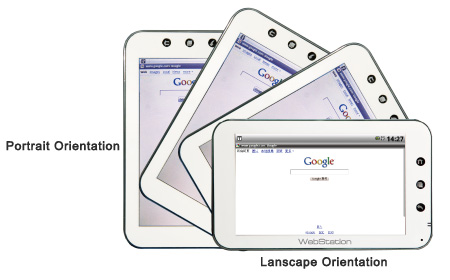
You can type text on Browser application, even though viewing as lanscape and portrait orientation. After typing the first column, please press the Return Key to return to the browser screen and touch to the next column to activate Soft Keyboard again for more text column input.
11. Why can't I see any pictures when open browser?
If there is no problem with your wireless network, maybe it results from the cache of browser. Please follow the indications below to clear your cache.
Press Menu Key -> More -> Settings ->Reset to default.
If you still can’t see any pictures after clearing the cache, please reset or restart your WebStation and try again.
12. How to download a video file from a "download button "on a webpage?
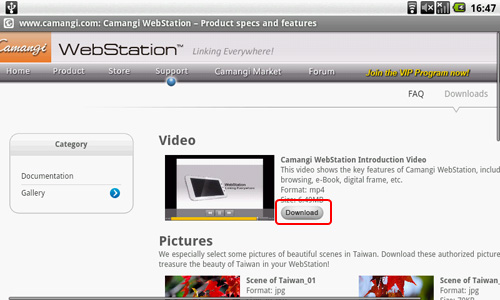
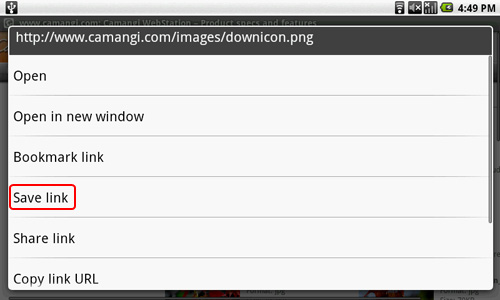
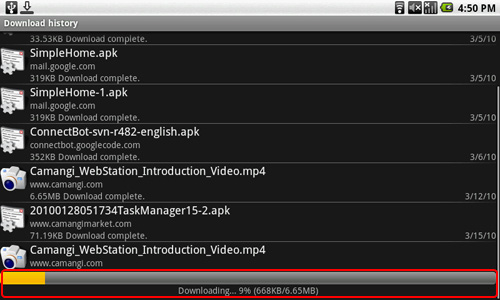
When you press "download" button for video on a webpage, it will try to open this video instead download it. Currently Android doesn't support streaming video, so it will show an error message. This is the limitation from Android. In order to deal this situation, please long press the download button on the web page, it will pop up a window. Then press the "Save link", it will download the video in the SD-Card automatically.